 Gobo Designer
Printable gobo templates
Updated 11 November 2026
A gobo template is the gobo drawn at full size: the outer edge, the image area inside it, and the centre. Print one to sketch a design by hand, or open the SVG in Illustrator, Inkscape or Affinity and draw over it. They are free to download and use.
Download a template
Each template is one A4 page and also fits US Letter. The sizes are the ones Gobo Designer uses for its exports, from Rosco's standard size table (see gobo sizes for where makers disagree).
| Size | Download | Preview |
|---|---|---|
| A Outer 100 mm Image area 75 mm | PDF SVG | 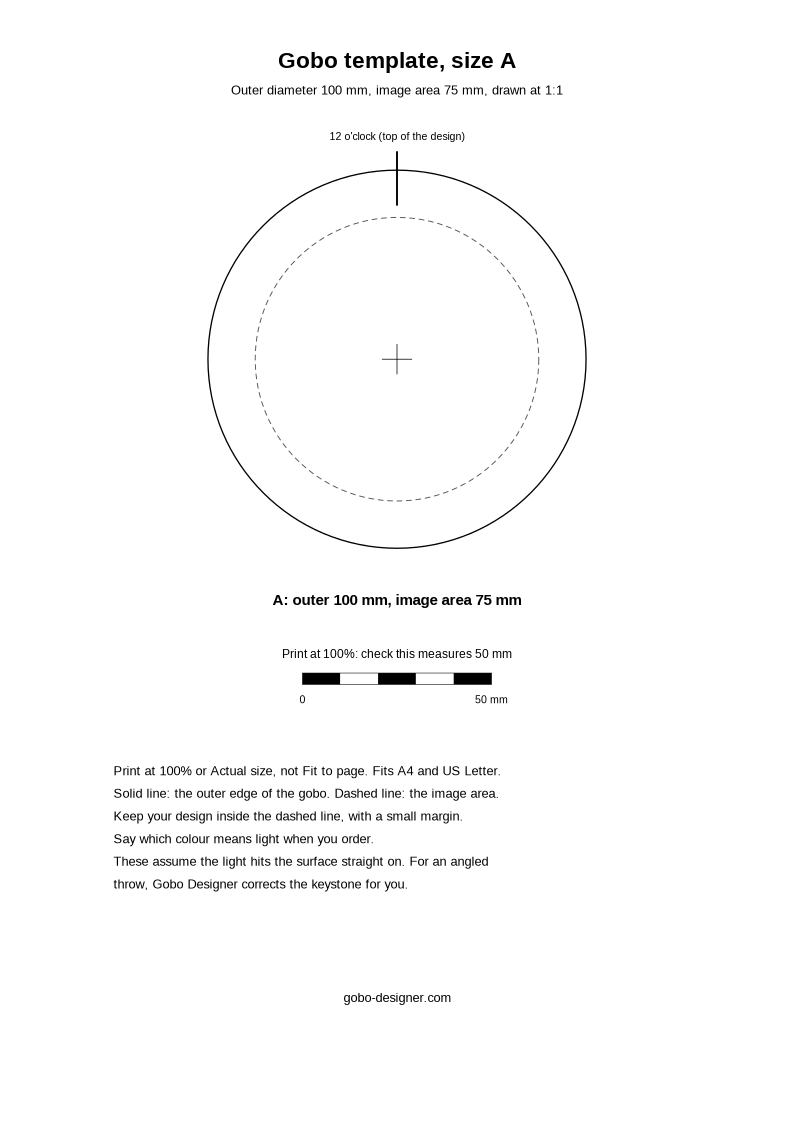 |
| B Outer 86 mm Image area 64.5 mm | PDF SVG | 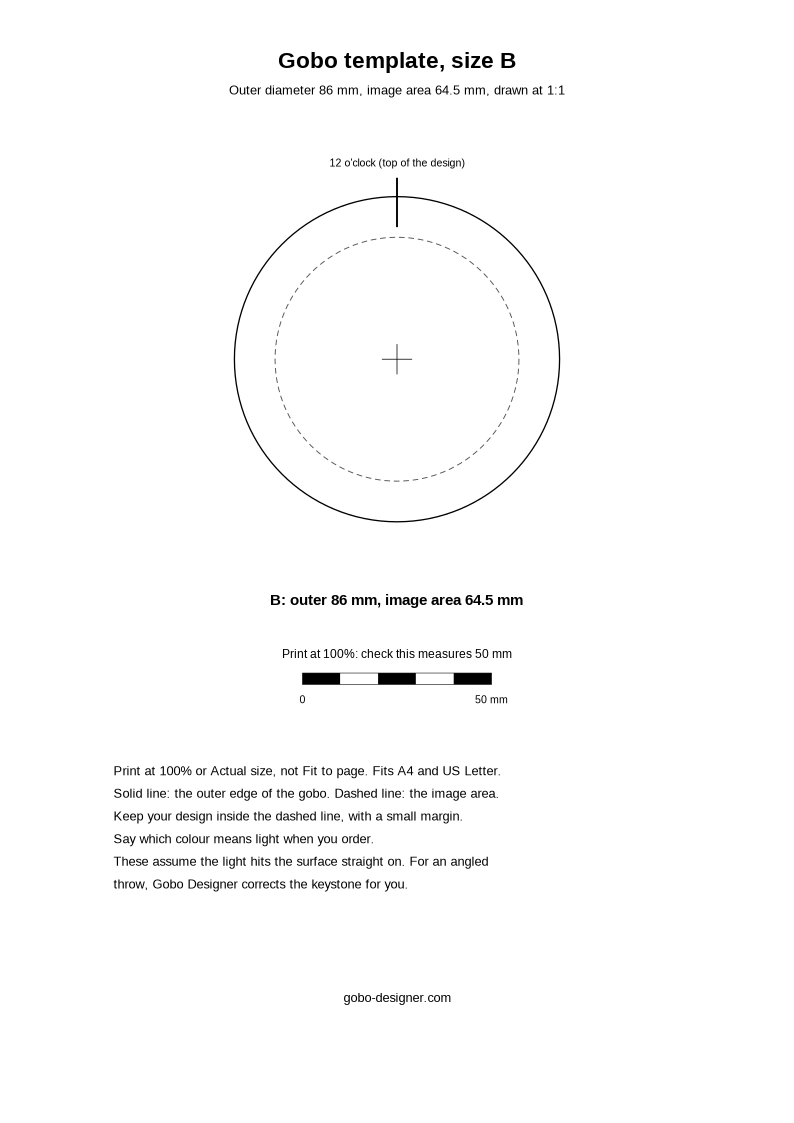 |
| M Outer 66 mm Image area 48 mm | PDF SVG | 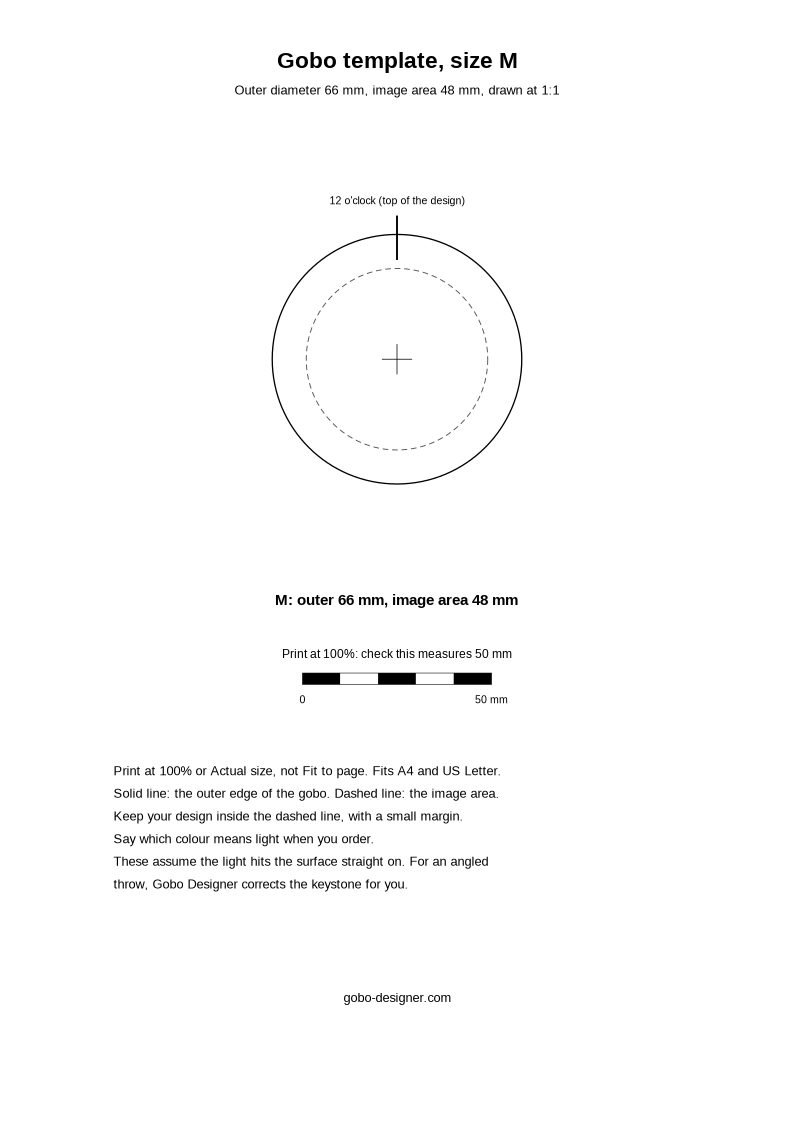 |
| E Outer 37.5 mm Image area 28 mm | PDF SVG | 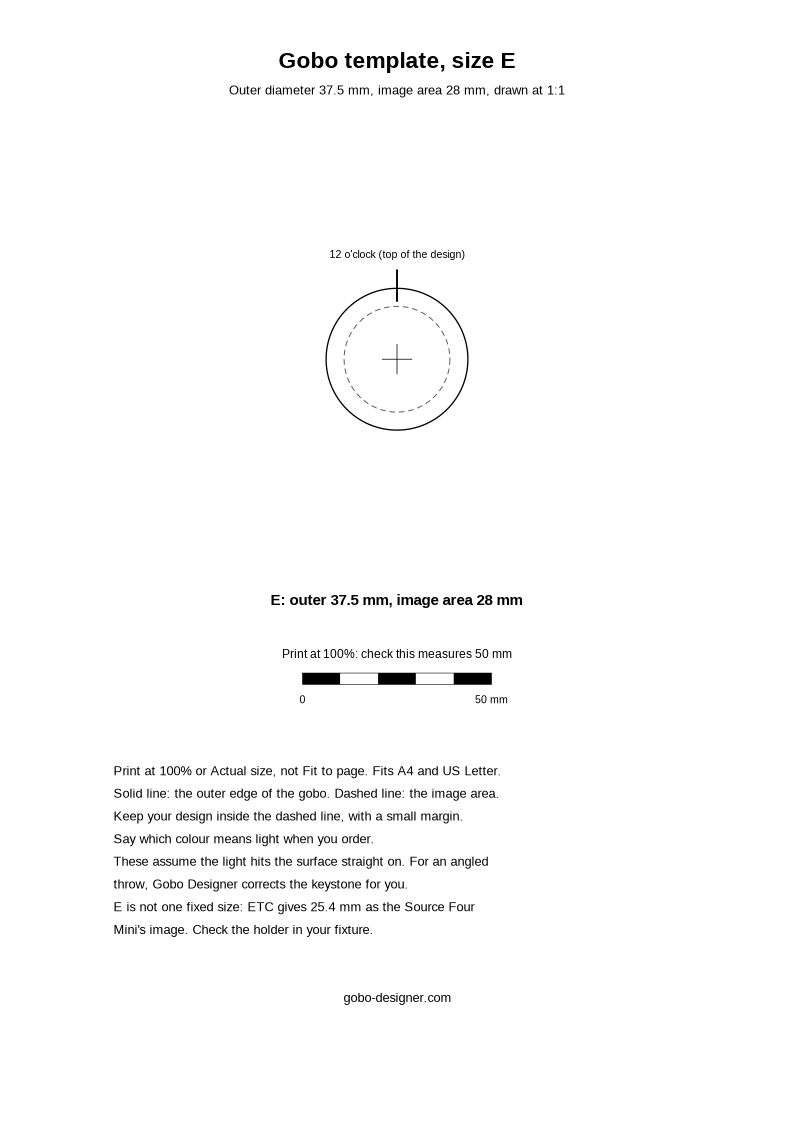 |
E is not one fixed size. The 28 mm image area is Rosco's; ETC gives 25.4 mm for the Source Four Mini. Not sure which size your fixture takes? The gobo sizes guide lists common profiles, and the holder in your rig has the final say.
Printing at the right size
Print at 100%, which your print dialogue may call Actual size. Fit to page or Scale to fit will shrink or enlarge the drawing. Each sheet has a 50 mm scale bar: measure it with a ruler after printing, and if it is not 50 mm, the rest of the page is wrong by the same amount.
What the lines mean
- Solid circle: the outer edge of the gobo, which has to fit the holder.
- Dashed circle: the image area, the part that projects. Keep your design inside it with a small margin, because the edge of the image circle is where focus and brightness fall off first.
- Cross: the centre of the gobo.
- 12 o'clock mark: the top of your design. Mark which way is up on anything you send the maker.
No maker publishes a rule for which colour in your file means light, so draw in whichever way suits you and say which you mean when you order. The artwork guide explains why light and dark matter more than ink.
Drawing on a computer
The SVG is drawn in millimetres at 1:1, so a shape that fills the dashed circle in your editor fills the image area on the gobo. It has two layers: Your artwork, which is empty, and Template guides underneath, which holds the circles, labels and scale bar. Inkscape opens them as layers; other editors may show them as two groups. When the design is done, convert text and strokes to outlines (Apollo, for one, asks for fonts as outlines) and send it in a format your maker accepts. The step-by-step design guide covers what to send.
Check it in Gobo Designer
You can also check a drawing before it goes to the maker:
- Draw in the Your artwork layer, as filled shapes.
- Save as SVG. You can leave the Template guides layer in: Gobo Designer leaves it out and tells you it did. Delete it before you send a file straight to a maker.
- In Gobo Designer, choose Content, then Logo (SVG), and open the file.
The app places your design on the real surface from your fixture's position, corrects the keystone, and checks line widths and letters that would fall out of steel. It sets the size on the surface itself and fits the design to the image circle, so the file's own size does not matter there. Shapes drawn only as strokes are left out, with a message saying how to convert them.
Straight on, or at an angle
These templates assume the light hits the surface straight on. When it does not, the image stretches into a trapezoid and the artwork needs keystone correction, which Gobo Designer works out for you from where the fixture hangs.
Sources
The sizes are those used by the gobo sizes guide, checked 8 October 2026.